
System Login Security - OTP - Authenticator App
When accessing your Compliance Robot system you'll be required to enter a One Time Password (OTP).
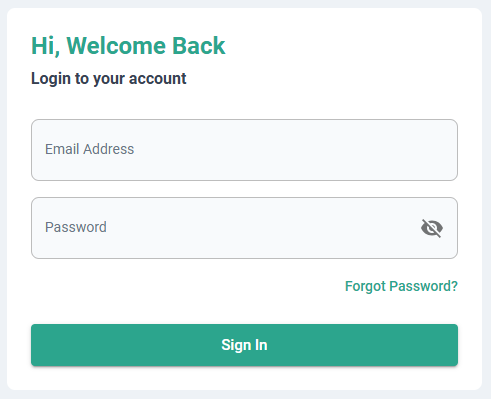
- Navigate to your Compliance Robot System login page. This is specific to your Compliance Robot System deployment and the link can be obtained from your System Administrator.
- Enter your Email and Password in the relevant fields.
- Click the Sign In button.
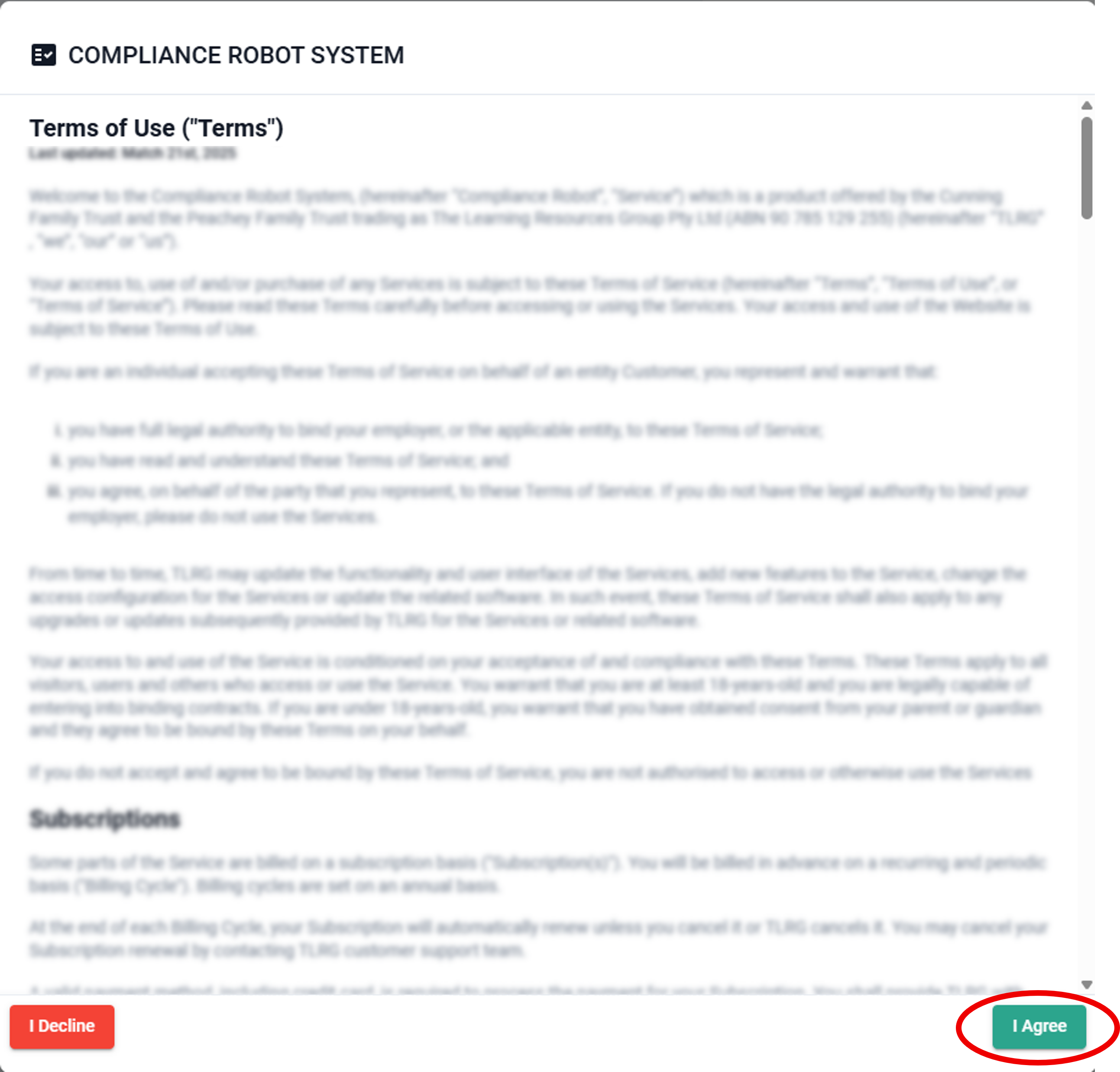
- Agree to terms screen: Once details have been entered a pop-out with the terms and conditions of use for the system will appear. To agree to the terms and access the system, click the I Agree button.
- Two-Factor Authentication: At the next screen you will need to complete Two-Factor Authentication. This can be done via a Mobile App Authenticator, or Email (via a code emailed to the address entered on the login screen). Select the preferred option and click Continue.
Note: If logging in for the first time and choosing the Mobile App Authenticator option the next screen will have the prompts to set this up.


- Once the One-Time Passcode (the 6-digit number) has been entered, click Continue and your system will open to the Dashboard.